
|
|
|
|
|
Instructions |
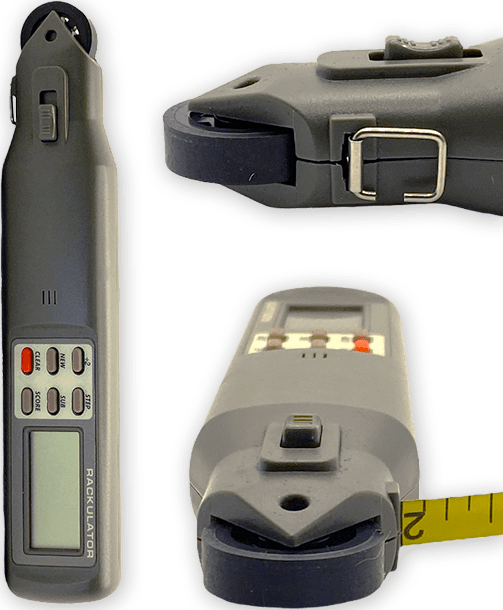
Button Functions . . .
. . . .
#1. NEW
- Clears all measurements.
#2. CLR - Clears the current measurement. Hold
CLR button down for two seconds, will zero total of all NONTYP Points.
#3. STEP - Cycles through the measurements. The
ten measurements are: SPREAD, RIGHT CIRC (Right Circumference), RIGHT
BEAM, RIGHT TINES, RIGHT NONTYP (Right Non Typical), LEFT CIRC
(Left Circumference), LEFT BEAM, LEFT TINES, LEFT NONTYP (Left Non Typical),
and EXTRA. The extra function is used to make measurements which are
not part of the score.
#4. SUB - When displaying either the CIRC step
or the TINE step, SUB cycles through the submeasurements. The submeasurements are CIRC
1 through CIRC 4 and TINE 1 through
TINE 9. When displaying the score, SUB cycles
through the subtotals. The subtotals are SPREAD, RIGHT and LEFT.
#5. SCORE - Cycles through the scores for the
different scoring systems. The seven scores are: BTR (Buckmaster Trophy Records), SCI TYP (Safari Club
International Typical), SCI NONTYP (Safari Club International Non Typical),
GR TYP (Gross Typical), NET TYP (Net Typical),
GR NONTYP (Gross Non Typical) and NET NONTYP (Net
Non Typical).
#6. ÷ 2 - Divides the current measurement
by two. Press twice to divide by four. |
Operating the Rackulator . . . . . . . . . . . . .
The Rackulator is designed to be user
friendly. Pressing any button will turn on the Rackulator.
It turns off automatically after approximately seven minutes of disuse.
No data is lost if this happens - when turned back on all measurements
are maintained. The screen will prompt you along as you are scoring
your trophy. To help with this, we have shown scoring illustrations
of some of the big game animals in North America and by each illustration
we have written helpful hints and suggestions. For instance, if
prompt on screen shows CIRC 1, look at illustration for CIRC 1 and take
that measurement.
When starting a score, NEW
is pressed, the screen will display spread, take measurement and press
STEP and the Rackulator is set for the right side.
CIRC 1 will appear on screen. You then take the CIRC 1 measurement;
you press the button marked SUB, CIRC 1 is entered and CIRC
2 will appear, repeat until CIRC 2, CIRC 3, CIRC 4 are completed.
You now press the STEP button; right beam will appear on screen.
Using your pointer, line up with starting point of the beam.
Roll along. Measurement is complete when pointer lines up with
end of beam. Press the STEP button, now Tine 1 will show
on screen. Using your pointer, line up with starting point of the
tine. Roll along. Measurement is complete when pointer lines
up with end of the tine. Press SUB button, Tine 1 is entered
and Tine 2 will appear. Repeat until all typical tines are complete.
Note: If a typical tine is missing or broken off less than one inch and
will not qualify as a tine, a zero must be entered by pressing SUB button.
Then press STEP button, NONTYP will appear on screen. Note:
Any measurement may be zeroed and repeated during or after scoring is
complete.
NONTYP Tine 1 will appear.
NONTYP tines are measured in the same fashion as TYP tines.
Take NONTYP Tine 1 Measurement. Press SUB, NONTYP Tine 1
is entered and NONTYP Tine 2 will appear. Repeat until all NONTYP
tines are complete. NONTYP tine counter will register up to 9.
Any amount of NONTYP tines can be measured. Total inches of tines
are added into a total and cannot be individually viewed. If you
make a mistake, NONTYP tines may be cleared by holding CLEAR button
down for 2 seconds.
When NONTYP is completed, press
STEP button, the Rackulator then starts the left side
at CIRC 1, repeat the above steps until left side is done. The
scoring is completed; now press the SCORE button. Continue
to press SCORE button until your desired system and category appears.
Note: The electronic tape must be used
for inside spread and for the circumferences. The wheel or
tape can be used on beams and tines. |
Terms to Know . . . . . . . . . . . .
. . . . . . . . . . . . . . . . . . . . . . . . . .
Inside Spread (At Widest Point) - Inside spread
is done by holding the clip of the tape against the inside of the beam
on one side, while the outside of the neck of the Rackulator is held
on the inside of the beam on the other side. Be sure current measurement
is zeroed. The lock button is pushed and the measurement is taken
while the tape is manually pushed back in. The width of the clip
and the neck of the Rackulator are automatically added in. (See Scoring
Instructions)
Circumference - Circumference is done by using the tape.
Pull out the tape and put it around the antler where the measurement
is taken. Hook the clip on the tape, while holding the tape around
the beam; push the Rackulator against the beam. This will align
the tape straight into the Rackulator where the clip and Rackulator meet.
This will avoid kinking of the tape. Be sure current measurement
is zeroed. The lock button is pushed and the measurement is taken
while the tape is manually pushed back in. It is necessary to pull
out more tape to release the clip. This will not alter the measurement.
The length of the clip will automatically be added in. (See Scoring
Instructions)
Beam - Measurement taken with the wheel, starting
at the tip of the beam following the center along the outer curve
of the beam to the lowest point of the burr. (See Scoring Instructions)
Tines - Tines should be marked off with a pencil
line. Use wheel starting at tip of tine, roll down center and
outer curve of tine stopping at intersection of beam and tine.
(See Scoring Instructions)
Wheel - The wheel will add while rolling in
either direction. If you change directions it will minus.
Tape Measure - The tape measure can be used
as an electronic tape by pushing the lock button while the tape is out.
It is measured by the wheel when the tape is manually pushed back
in. While using the tape electronically, the numbers on the tape
will not coincide with the numbers on the screen. The tape can
be used to make measurements manually or electronically. Manual
measurements are made in the same manner as with a regular tape measure.
The results may then be entered into the Rackulator by rolling the wheel
manually until the display shows the desired measurement. It is
necessary to assist tape measure retraction when lock is engaged by manually
pushing the tape back in.
Lock Button - Pushing lock button toward wheel engages
tape. Pushing away from wheel disengages tape.
Pointer - Start and finish point alignment.
Beeper - The beeper will sound while the wheel is
in motion.
Computer Interface Jack - Link to computer (requires
optional software & cable).
Extra - Extra is a mode that was put in the
Rackulator for multipurpose use. You can use this mode at any
time while scoring and it will not add in any measurement taken.
This mode can be used to find the proper location for circumference measurements
on a 4 X 4 whitetail. The 4th circumference is taken halfway
between the last tine and the point of the main beam. You can
roll this distance with the wheel. Push the ÷ 2 button,
remember that figure, push clear, roll from beam tip until that figure
appears on the screen, now mark that circumference location and take
measurement. This method also works on horned game to find the
quarter measurements by pushing the ÷ 2 button twice.
|
|
 |
Step 1 - Inside Spread:
Measurement is taken at widest point between the main
beams (as shown on Scoring Instruction Card) by holding the end of the
clip against the inside of one beam & the outside of the neck of the
housing against the inside of the other beam. Engage the lock button
and insert the tape by pushing it in slowly to take the measurement.
Press Step, moving to Circumference. Disengage the lock button. |
|
|
|
|
Step 2 - Circumference:
Put the tape around the antler at desired circumference.
Hook the tape into the clip; slide the Rackulator down tight against
the antler making sure all the slack is pushed out of the tape with the
thumb and fingers. Engage the lock button, slightly pull back the
Rackulator, unhook the tape, and insert the tape by pushing it in slowly
to take the measurement. Press Sub to move onto the next circumference
or press Step to move onto the main beam. (Refer to Scoring Instruction
Card for Circumference measurements). Disengage the lock button.
|
|
 |
Step 3 - Main Beam
Using the pointer, start at the tip or burr of the main
beam. Roll along the center of the beam to the finishing point (as
shown on Scoring Instruction Card). Press Step to move onto Tine 1.
|
|
|
| Step 4 - Typical Tine
Using the pointer, start at the tip of the tine and roll down
to the end of the tine where it meets the beam (as shown on Scoring Instruction
Card). Press Sub to move onto the next tine or press Step to move onto
the Non-Typical Tine if necessary. |
 |
|
|
 |
Step 5 - Non-Typical Tine
Using the Pointer, start at the tip of the Non-Typical tine
& roll along the tine to the end mark (as shown on Scoring Instruction
Card). Continue until all Non-Typical Tines are done. Press
Sub to move onto the next Non–Typical Tine or press Step to move onto the
next side or press Score if scoring is completed. |
|
|
| Illustration 1 |
Illustration
2 |
Illustration
3 |
 |
 |
 |
|
| |
| On a mounted head, the ears may be in a position that
the main beam cannot be measured with the wheel. In this case
you can use the electronic tape. The hinge at the end of the tape
should be held at the burr (As Shown In Illustration 1).
Run the tape along the middle of the main beam to the tip, putting the
Rackulator where the tape exits against the tip (As Shown In Illustration
2). Engage the lock button and insert the tape by pushing it
in slowly to take the measurement. Press Step and disengage the
lock button. This same procedure may be used on some Non-Typical
Tines that cannot be done with the wheel. (As Shown In Illustration
3) You can also measure any tines or beams by using the tape
as a regular tape measure and then roll that figure into the Rackulator
by rolling the wheel on your hand or other surface
and pressing the desired button.
Software
is also available for use with the Rackulator.
Click here. |
|
|